Code written by others arrives as packages from the Python Package Index. Install, list and inspect them with python -m pip, see where they land, compare version numbers one whole number at a time, pin them with ==, and import NumPy as np for the first time.
Install, list and inspect packages with python -m pip, and say where the installed files land.
Read a version number as major.minor.patch and decide which of two versions is newer, one whole number at a time.
Pin a package to an exact version with == and read a requirements file.
Import an installed package under its usual short name, import numpy as np, and find its installed version with importlib.metadata.
In review. The maths and code on this page are checked by automated tests on every change, but an independent reader has not signed it off yet. Spot a mistake or a confusing step? Tell us.
The question
The standard library has no arrays, no tables of data and no machine-learning models. NumPy, pandas and scikit-learn have them, and every later course imports them. They are not part of Python: other people write them and publish them on a public index. How does such a package get onto your machine, into a folder that import searches, and how do you say which version you want, when 2.10.0 is newer than 2.9.3?
From the last lesson
1. In which order does Python try the folders of sys.path, and when does it stop?
Show answer
From the top, starting with the script’s own folder, and it stops at the first folder that holds the module.
2. What does if __name__ == '__main__': let a file do?
Show answer
Run some lines only when the file is the program that was run, and skip them when it is imported.
Intuition
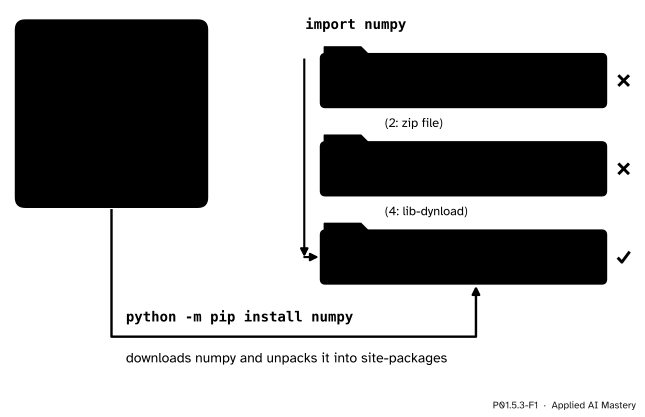
Projects publish their code as packages: bundles of modules with a name and a version number. The Python Package Index, PyPI, at pypi.org, is the public index where they are published. The program pip downloads a package from PyPI and unpacks it into site-packages, the last folder of sys.path (P01.5.2). From then on, import finds it there like any other module.
P01.5.3-F1
pip puts a package into site-packages, the last folder of the search path, and import numpy finds it there.
Build it up
Step 1. Install. Commands like this are typed in a terminal, not in Python. The run below is from a Mac with Python 3.15, shortened a little; the name of the downloaded file says which Python and which system it was built for.
-m pip tells Python to find the module pip on sys.path and run it as the program, as with __main__ in P01.5.2. So the pip that runs is the one that belongs to this python, and the package lands where this python will look for it.
Step 2. List and inspect.python -m pip list lists what is installed. On that same Python, which held nothing but pip before:
python -m pip show reports on one package. Here it is with a few lines left out, and the start of the path cut:
$ python -m pip show numpyName: numpyVersion: 2.5.4Summary: Fundamental package for array computing in PythonLocation: .../lib/python3.15/site-packages
Step 3. What landed.site-packages now holds a folder numpy, which is a package of modules (P01.5.2), and a folder numpy-2.5.4.dist-info, a record of what was installed: the name, the version and the list of files. import numpy finds the first; the version number is read from the second.
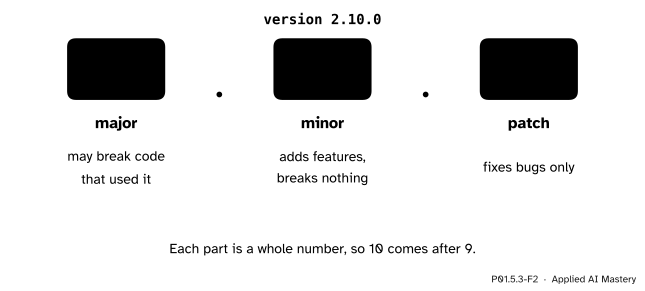
Step 4. Version numbers. Many projects number their releases with three whole numbers, major.minor.patch. The scheme called Semantic Versioning gives each part a meaning.
P01.5.3-F2
The three parts of a version number. Each is a whole number in its own right.
Not every project keeps to these meanings strictly, so read the release notes before moving to a new major version. NumPy 2.0, for example, removed the old name np.NaN; its migration guide says to write np.nan instead.
Step 5. Pinning.python -m pip install numpy==2.5.4 installs exactly that version. A list of such pins is usually kept in a file called requirements.txt. This site’s own requirements.txt holds, among others, these three lines:
numpy==2.5.4pandas==3.1.1pytest==9.2.0
Read them by eye: numpy at exactly 2.5.4, pandas at exactly 3.1.1, pytest at exactly 9.2.0. python -m pip install -r requirements.txt installs every line of the file. The full recipe for using it waits for the next lesson.
A package on the Python Package Index is a bundle of modules published under a name and a version. python -m pip install name downloads it and unpacks it into site-packages, a folder of sys.path.
A version number major.minor.patch is three whole numbers. A pinname==version asks for exactly that version, and nothing else.
To decide whether version a is newer than version b, compare one whole number at a time:
If the majors differ, the version with the larger major is newer, and the comparison stops.
Otherwise, if the minors differ, the larger minor decides.
Otherwise the larger patch decides; if the patches are equal too, it is the same version.
The packaging specification says it plainly: the parts of a version “MUST be interpreted and ordered according to their numeric value, not as text strings”.
Worked example
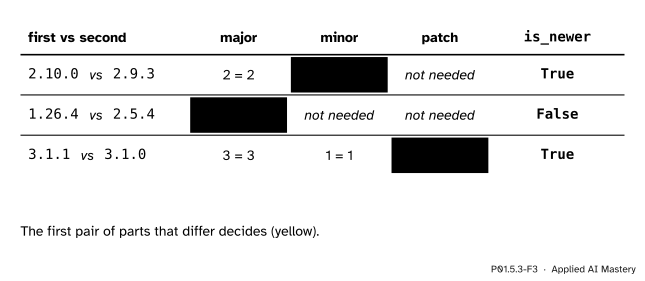
Which is newer? Three pairs, each compared by the rule.
2.10.0 against 2.9.3. The majors are equal (2 and 2). The minors differ, and 10 > 9, so 2.10.0 is newer. The patches, 0 and 3, are never looked at.
1.26.4 against 2.5.4. The majors differ, and 1 < 2, so 1.26.4 is older, although 26 is bigger than 5.
3.1.1 against 3.1.0. Majors equal, minors equal, and the patch 1 > 0 decides: 3.1.1 is newer.
P01.5.3-F3
The comparisons as a trace. The first pair of parts that differ decides, and the parts after it are not needed.
The same rule reads a requirement. If a machine has numpy 2.5.3 and requirements.txt says numpy==2.5.4, the pin is not met: == asks for exactly 2.5.4, and the patch differs.
Code
The rule from scratch, as a function with if and elif. Each version arrives as three whole numbers.
def is_newer(a_major, a_minor, a_patch, b_major, b_minor, b_patch):"""True when version a is newer than version b."""if a_major != b_major:return a_major > b_majorelif a_minor != b_minor:return a_minor > b_minorelse:return a_patch > b_patchprint('2.10.0 newer than 2.9.3?', is_newer(2, 10, 0, 2, 9, 3))print('1.26.4 newer than 2.5.4?', is_newer(1, 26, 4, 2, 5, 4))print('3.1.1 newer than 3.1.0? ', is_newer(3, 1, 1, 3, 1, 0))print('2.5.4 newer than 2.5.4? ', is_newer(2, 5, 4, 2, 5, 4))
2.10.0 newer than 2.9.3? True
1.26.4 newer than 2.5.4? False
3.1.1 newer than 3.1.0?  True
2.5.4 newer than 2.5.4?  False
Now the first import of a package that pip installed. import numpy as np binds the short name np, which every later course uses. NumPy’s mean sits beside the one written by hand:
import numpy as npdef mean(values):"""Return the mean of a list of numbers."""returnsum(values) /len(values)scores = [55, 65, 80, 40, 60]print('by hand:', mean(scores))print('np.mean:', np.mean(scores))
by hand: 60.0
np.mean: 60.0
At the interactive prompt, np.mean(scores) shows as np.float64(60.0): NumPy has float types of its own (P02.1), and print shows the plain 60.0.
Which version is installed? The module importlib.metadata of the standard library has a function version that reads the record in the dist-info folder. A package usually also keeps its version in a name of its own, __version__.
from importlib import metadataprint('installed:', metadata.version('numpy'))print('numpy says:', np.__version__)
installed: 2.5.4
numpy says: 2.5.4
The Python that built this page had its packages installed from the site’s requirements.txt, so the version printed is the pinned one.
Explore
This module’s interactive, the import resolver, lives in lesson P01.5.4. Try it now: choose numpy and step the search down to site-packages, and note the version it reports.
Pitfalls
P01.5.3-F4
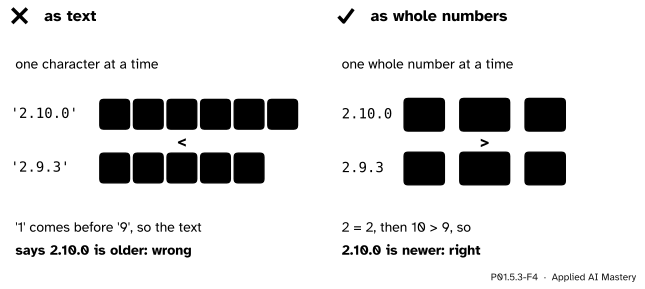
Wrong beside right. Text is compared one character at a time; a version, one whole number at a time.
“Versions can be compared as text.”
Text is compared one character at a time, like words in a dictionary. '2' equals '2' and '.' equals '.', and then '1' comes before '9', so the text says that 2.10.0 is older:
print('2.10.0'<'2.9.3')
True
The answer True is wrong for versions. Compare the whole numbers, as is_newer does.
“pip said it installed numpy, but import says there is no module named numpy.”
A machine can hold several Pythons, and the command pip may belong to a different one from the command python. Then the package lands in one Python’s site-packages and is searched for in another’s. The pip documentation gives the fix: python -m pip runs pip with exactly the Python you named. Use that form every time.
“The name I install is the name I import.”
Often, but not always. scikit-learn is installed as scikit-learn and imported as sklearn. PyYAML, also in this site’s requirements, is imported as yaml. metadata.version uses the install name:
Do not type pip install sklearn: since 1 December 2023, installing the package of that name from PyPI stops with an error. Install scikit-learn instead.
“error: externally-managed-environment means pip is broken.”
On some systems, such as Homebrew’s Python on a Mac and Debian 12’s own Python, installing into the system’s Python is refused on purpose, so that pip cannot break the programs that the system itself runs in Python. The message starts like this (from Homebrew’s Python 3.15), and goes on to suggest a virtual environment:
error: externally-managed-environment× This environment is externally managed
That suggestion is the right one, and the next lesson is about it.
Check yourself
Recall
1. What does python -m pip install numpy do?
Show answer
It downloads numpy from the Python Package Index, in a file built for your Python and your system, and unpacks it into the site-packages folder of the python that ran pip.
2. Why write python -m pip rather than plain pip?
Show answer
It runs the pip that belongs to that python, so the package lands where that python will look for it.
3. Which is newer, 2.10.0 or 2.9.3, and which part decides?
Show answer
2.10.0. The majors are equal, and the minor decides: 10 > 9.
4. What does the line numpy==2.5.4 in a requirements file ask for?
Show answer
Exactly version 2.5.4 of numpy: not 2.5.3, not 2.6.0.
5. After import numpy as np, which name is bound, and what does np.mean give for the five scores?
Show answer
The name np, bound to the module numpy. np.mean([55, 65, 80, 40, 60]) gives 60.0.
Exercises
1.★ Put these versions in order from oldest to newest: 2.9.3, 1.26.4, 2.10.0, 2.5.4, 1.3.0.
Show solution
1.3.0, 1.26.4, 2.5.4, 2.9.3, 2.10.0. The majors split them into the 1s and the 2s. Among the 1s, the minors 3 and 26 decide; among the 2s, the minors 5, 9 and 10.
2.★★ pandas 3.1.1 needs numpy 2.0.2 or newer. Using is_newer, write at_least(major, minor, patch, need_major, need_minor, need_patch), which is True when the installed version is the needed one or newer. Is numpy 2.5.4 enough? Is numpy 1.26.4?
Show solution
Newer, or else exactly equal:
def at_least(major, minor, patch, need_major, need_minor, need_patch):"""True when the installed version is the needed version or newer."""if is_newer(major, minor, patch, need_major, need_minor, need_patch):returnTruereturn major == need_major and minor == need_minor and patch == need_patch
For 2.5.4 against 2.0.2 the majors are equal and the minors decide, 5 > 0, so it is newer: True. For 1.26.4 the majors decide, 1 < 2, and the versions are not equal either: False. So pandas 3.1.1 cannot be used with numpy 1.26.4.
3.★★★ A colleague’s machine has numpy 2.5.3, pandas 3.1.1 and pytest 9.2.0. Which of the three pinned lines are met? Then explain why the packaging rules recommend exact pins for the environment of an application, yet discourage them in the requirements of a library that other people install.
Show solution
pandas and pytest are met. numpy is not: == asks for exactly 2.5.4, and 2.5.3 differs in the patch. Running python -m pip install -r requirements.txt would replace it with 2.5.4.
Exact pins make an application’s environment repeatable: every machine built from the file gets the same versions, and so the same results. A library is different, because it is installed inside other people’s environments. If it demanded exactly numpy 2.5.4, every project that uses it would be stuck on that one version, unable to take a newer one that fixes a security hole, and two libraries pinned to different versions could not be installed together. The specification says that == is meant for “repeatable deployments of applications”, and that in the requirements of published packages it “is strongly discouraged”.
Summary card
pip brings packages from PyPI into site-packages, where import finds them.
Versions are major.minor.patch, compared one whole number at a time: 2.10.0 is newer than 2.9.3.
Pins:numpy==2.5.4 means exactly that version; python -m pip install -r requirements.txt installs a whole file of them.
First import:import numpy as np; np.mean(scores) is 60.0, and metadata.version('numpy'), from importlib, gives the installed version.
Sources and next steps
Sources. Each was opened and checked against this lesson on 12 November 2026.
Python Software Foundation, The Python Tutorial, section 12.3, Managing Packages with pip: pip installs from the Python Package Index; python -m pip install with a name, or with name==version for one exact version; show, list, freeze, and installing a requirements.txt with install -r.
Python Packaging Authority, pip User Guide: python -m pip runs pip with the Python interpreter you named; requirements files hold the output of pip freeze for repeatable installs.
Python Packaging Authority, Version specifiers: the parts of a release are compared by numeric value in turn, “not as text strings”, so 0.9.10 comes after 0.9.2; == is meant for repeatable deployments of applications and is strongly discouraged in the requirements of published packages.
Semantic Versioning 2.0.0: the meanings of MAJOR, MINOR and PATCH, and parts that increase numerically, as in 1.9.0, then 1.10.0.
Python Software Foundation, importlib.metadata: version() returns the installed version of a distribution package, whose name need not match the name it is imported by (PyYAML is imported as yaml).
NumPy 2.0 migration guide, main namespace: np.NaN was removed; use np.nan. And the pandas installation page: pandas 3.1.1 needs NumPy 2.0.2 or newer (its install record raises this to 2.3.3 on Python 3.14 and later, which changes no answer here).
The PyPI page of the sklearn package: deprecated, and since 1 December 2023 installing it raises an error; use scikit-learn instead. And PEP 668, which lets a system mark its Python as externally managed, so that installers refuse to change it outside a virtual environment; the Debian 12 release notes, section 5.2.2, mark Debian’s own Python interpreters that way.